In the Microsoft Authenticator app, find your work account and tap to open.
Under OTHER WAYS TO SIGN IN click Create a passkey
At the bottom of the next screen tap Sign in
You will need to go through identity verification in order to complete the process, follow along with the steps presented.
Give the device a few moments to create the passkey.
Success! Click Done
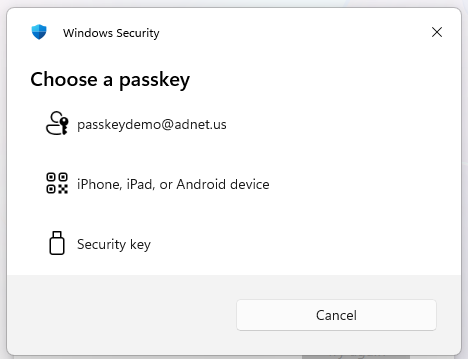
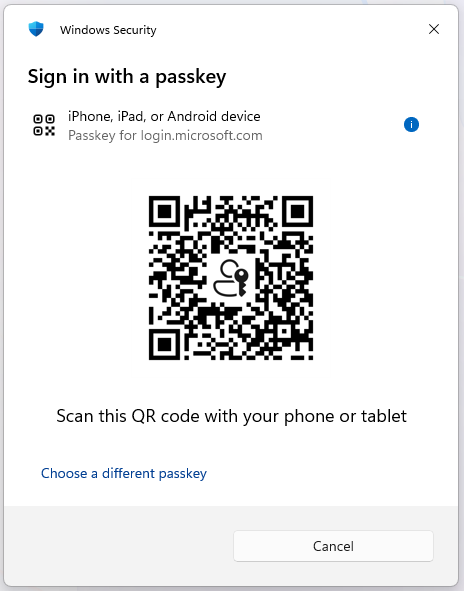
Now when you login to Microsoft 365 you will be asked to Choose a passkey, select iPhone, iPad, or Android Device
You will be presented a QR code to scan with your camera and login will complete, no passwords to type!
If you login to my https://myaccount.microsoft.com and choose My Account > Security Info, you will see the sign-in methods available to you along including the passkeys you have setup, with the ability to revoke any via the Delete link.


.jpg?width=276&height=600&name=Image%20(1).jpg "Image (1)")
.jpg?width=277&height=600&name=Image%20(2).jpg "Image (2)")
.jpg?width=277&height=600&name=Image%20(3).jpg "Image (3)")
.jpg?width=277&height=600&name=Image%20(4).jpg "Image (4)")
.jpg?width=277&height=600&name=Image%20(5).jpg "Image (5)")
.png?width=1326&height=684&name=54915d6deb4b9f627f5483e2b76fb975(1).png "54915d6deb4b9f627f5483e2b76fb975(1)")